
TinySnap
A tiny Windows tray app for taking screenshots with hotkeys and copying text from the screen (OCR).
What’s new in 1.0.4
- Text capture (OCR). New Text capture with its own hotkey (Shift+PrtSc) and a Capture Text tray menu item. Select an area and only the text in it goes to the clipboard; no image is saved.
- Text mode in any region capture. Press T to switch between image and text mode (the selection turns orange). S and W work in text mode too, for the whole screen or the active window.
- Uses the OCR built into Windows, in your Windows display languages. Nothing extra to install; requirements are unchanged.
Earlier versions
- 1.0.3: new setting Copy screenshot to the clipboard (on by default).
- 1.0.2: runs on .NET Framework 4.8, built into Windows 10 and 11.
- 1.0.1: About dialog, capture sound, optional automatic saving, open screenshots in an image viewer.
Captures
| Capture | Default hotkey | What it does |
|---|---|---|
| Whole Screen | Ctrl+PrtSc | Captures the monitor under the mouse pointer straight away |
| Active Window | Alt+PrtSc | Captures the window you are working in |
| Region | PrtSc | Shows a crosshair. Click the top-left corner, move the mouse, click the bottom-right corner |
| Text | Shift+PrtSc | Same selection as Region, but copies only the text in the area (OCR) to the clipboard |
While selecting a region you can also press S for the whole screen or W for the active window. Esc or a right click cancels.
T switches between image and text mode (in text mode the selection is orange). In text mode the selected area, screen or window is read with Windows’ built-in OCR and only the text goes to the clipboard; no image is saved. Text recognition uses the languages installed in Windows (Settings > Time & Language > Language).
Each screenshot is copied to the clipboard (can be turned off) and saved to your folder as Screenshot yyyy-MM-dd HHmmss.png or .jpg, or, with automatic saving off, wherever you choose in a Save As dialog. A capture sound plays, and the screenshot can open in your image viewer. Click the notification to show the file in Explorer.
Tray icon
- Single click or right click opens the menu: capture whole screen, active window, region or text, open the screenshots folder, settings, about, exit.
- Double click starts a region capture.
Settings
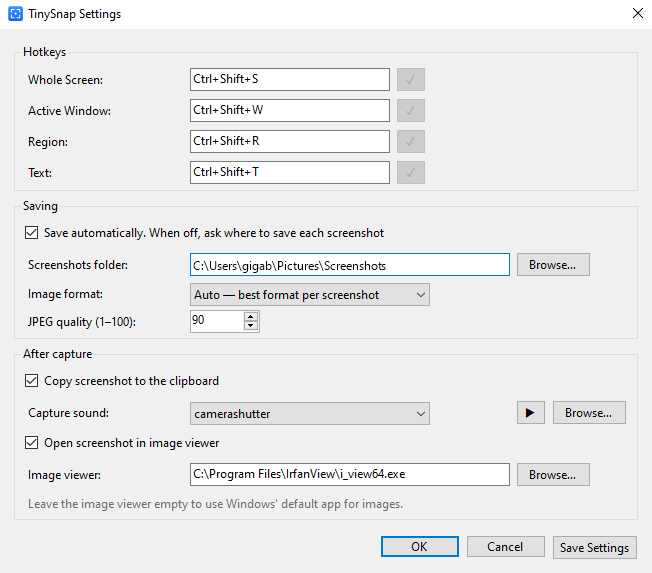
| Setting | Default | Notes |
|---|---|---|
| Hotkeys | see above | Four hotkeys: Whole Screen, Active Window, Region and Text. Click a box, press a key combination, then click ✓ to register it. Backspace clears a hotkey |
| Save automatically | On | When off, a Save As dialog asks where to save each screenshot |
| Screenshots folder | Pictures | Taken from the Windows known folder settings |
| Image format | Auto | PNG: lossless. JPEG: smaller files. Auto: picks a format for each screenshot |
| JPEG quality | 90 | 1–100, used by JPEG and Auto |
| Copy to the clipboard | On | When off, screenshots are only saved to files |
| Capture sound | camerashutter | A built-in sound, any .wav file, or none |
| Open in image viewer | Off | Path to your viewer's .exe; empty uses the Windows default app for images |
Auto encodes the screenshot both ways. UI, text and diagrams compress well losslessly, so when the PNG is no more than twice the size of the JPEG it keeps the pixel-perfect PNG. Photos and gradients are saved as JPEG.
Settings are stored in %APPDATA%\TinySnap\settings.xml.
License
Freeware. Free for personal and commercial use on any number of computers. You may redistribute TinySnap free of charge, unmodified and together with its license. Provided “as is”, without warranty of any kind.